- Resume app: tap Download/Export PDF — the cleanest result.
- Pages or Word: Share → Export → PDF (or Save as PDF).
- Any document or web page: Print → pinch out on the preview → Share → Save to Files.
- Name it FirstName-LastName-Resume.pdf and attach from Files or Mail.
Why send your resume as a PDF?
- Fonts, spacing and layout stay exactly as designed.
- It opens on any computer or phone without Word.
- Text-based PDFs are readable by applicant tracking systems.
Only send .docx if the employer explicitly asks for it.
Method 1: Export a PDF from CV Builder (recommended)
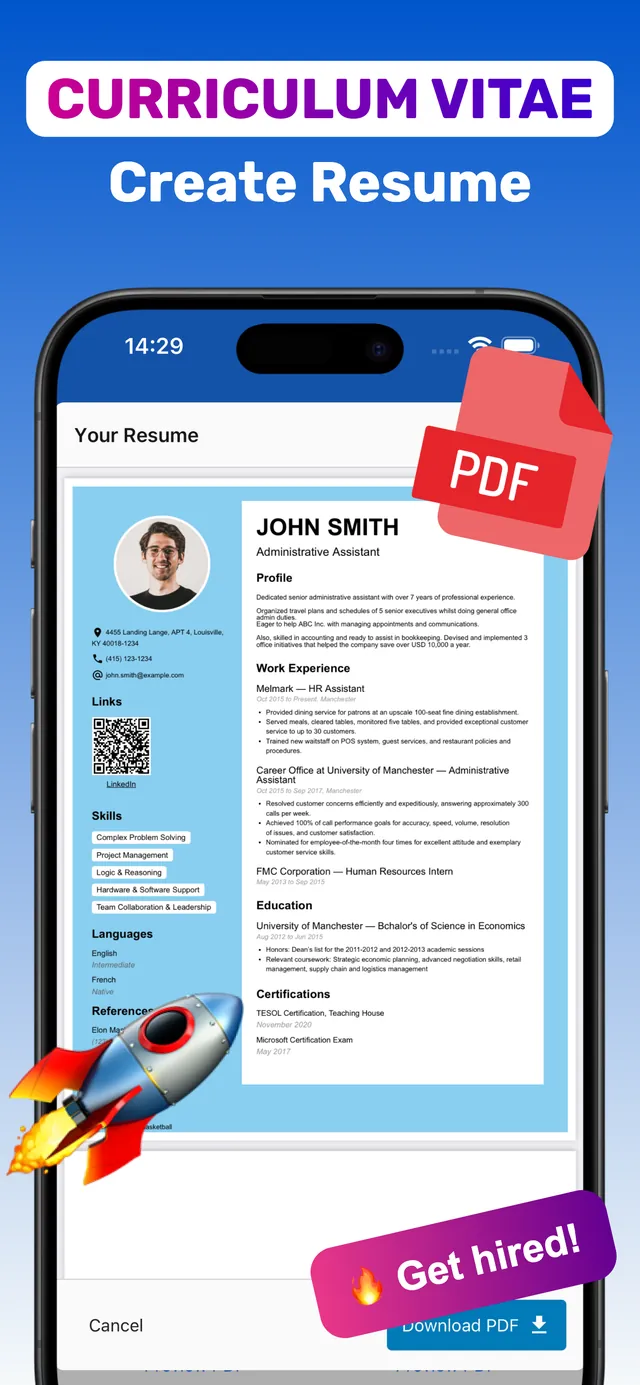
If you build your resume in CV Builder, the PDF is one tap away and designed for print and screen.
- Open your resume. Select the resume you want in CV Builder.
- Preview PDF. Check spacing and page count in the exact export layout.
- Tap Download PDF. The app generates a high-quality, text-based PDF.
- Save or share. Save to Files, attach it to an email, or send it directly.
Cover letters export the same way, in a matching design.

Method 2: From Pages or Microsoft Word
- Pages: open the document → tap ••• → Export → PDF → choose Save to Files or share directly.
- Word for iOS: open the file → ••• / File → Export or Save a Copy → choose PDF.
Check the PDF afterwards — templates designed on desktop often shift when edited on a phone.
Method 3: The Print-to-PDF trick (any app)
- Open the resume (a web page, Google Doc or email attachment).
- Tap Share → Print.
- On the preview, pinch outwards with two fingers — it opens as a PDF.
- Tap Share → Save to Files.
How to send the PDF
- Email: in Mail, tap the attachment icon → browse Files → select the PDF. Write a short message or paste your cover letter.
- Job sites: on the upload button, choose Browse → Files → your PDF.
- File name:
Jane-Smith-Resume.pdf— neverresume_final_v3.pdf.
Frequently asked questions
How do I convert my resume to PDF on iPhone?
In a resume app like CV Builder, tap Download PDF. In Pages or Word, use Export → PDF. For anything else, use Share → Print, pinch out on the preview and save the PDF to Files.
Where are PDFs saved on iPhone?
Wherever you choose in the Files app — usually “On My iPhone” or iCloud Drive. You can also send it straight from the share sheet without saving.
Should I send my resume as PDF or Word?
PDF, unless the employer asks for Word. PDF preserves your layout on every device.
Ready? Make yours on your iPhone now.4.8★ from 148 ratings · iPhone & iPad · Free to download